

-
Configure/confirm
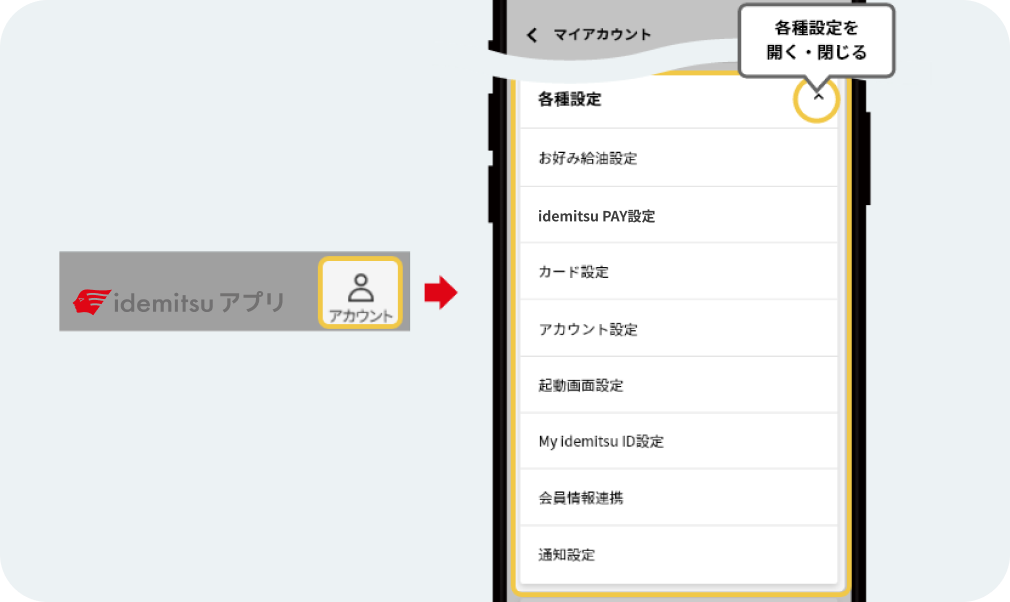
Configure/confirm
When you press [Settings] in My Account, a menu will appear where you can set and check your account and apps.
-
Setting the preferred refueling
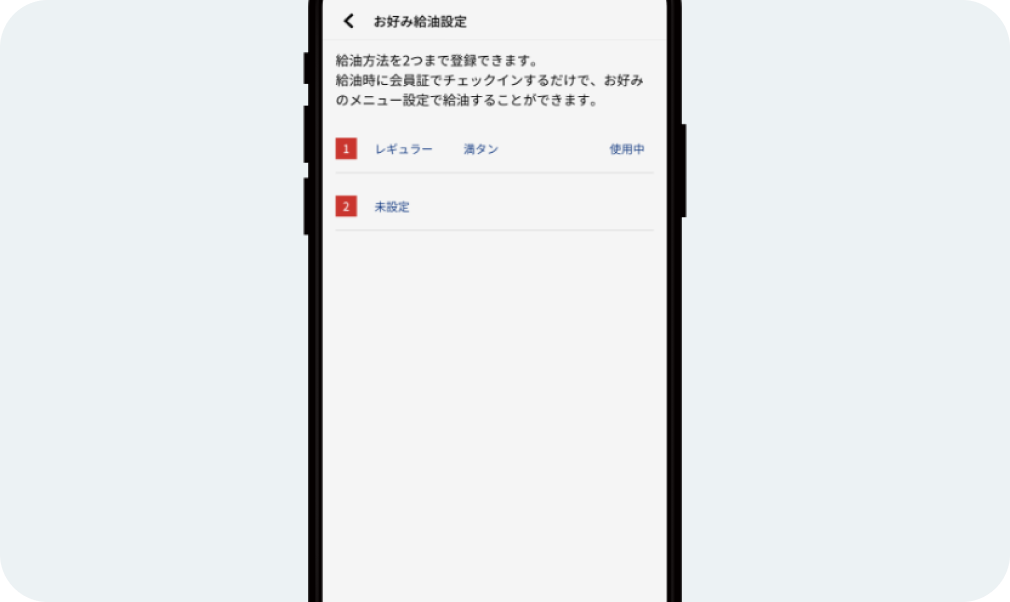
Setting the preferred refueling
Open [Various Settings] in My Account and press [Preferred Refueling Settings]. By setting the usual refueling information (oil type/quantity/amount), you can skip the refueling specification when refueling. Masu.
-
Set up idemitsu PAY
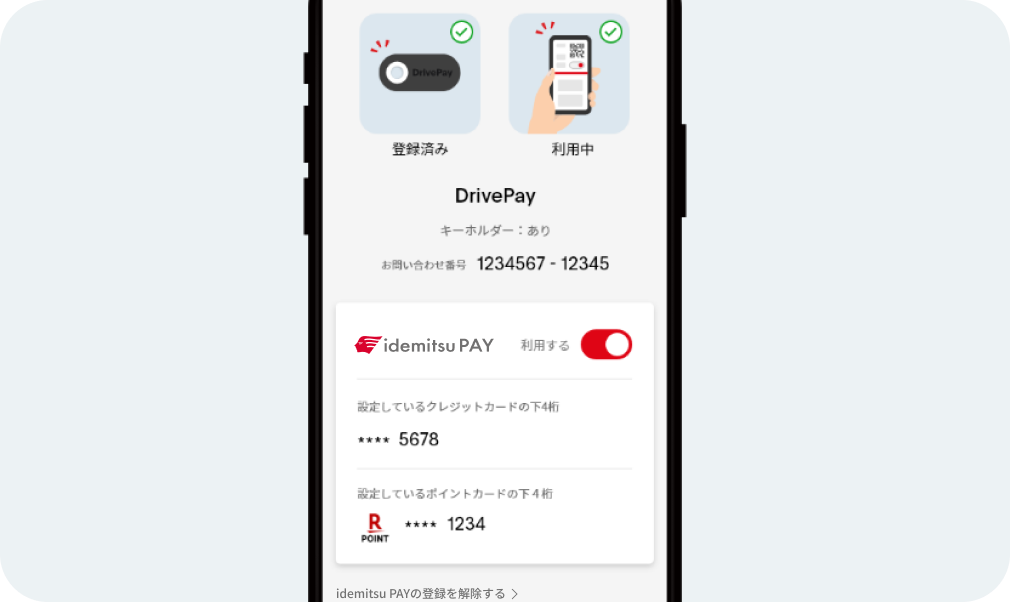
Set up idemitsu PAY
You can check your idemitsu PAY settings.
If you have already registered for idemitsu PAY, your usage status and some of your registered credit card number and point card information will be displayed. If you registered for DrivePay using a previous version of the idemitsu app, your registration status and inquiry number will be displayed.
By registering these, you will be able to view your refueling history using idemitsu PAY and DrivePay, as well as your purchase history for items you have bought. -
Register your card
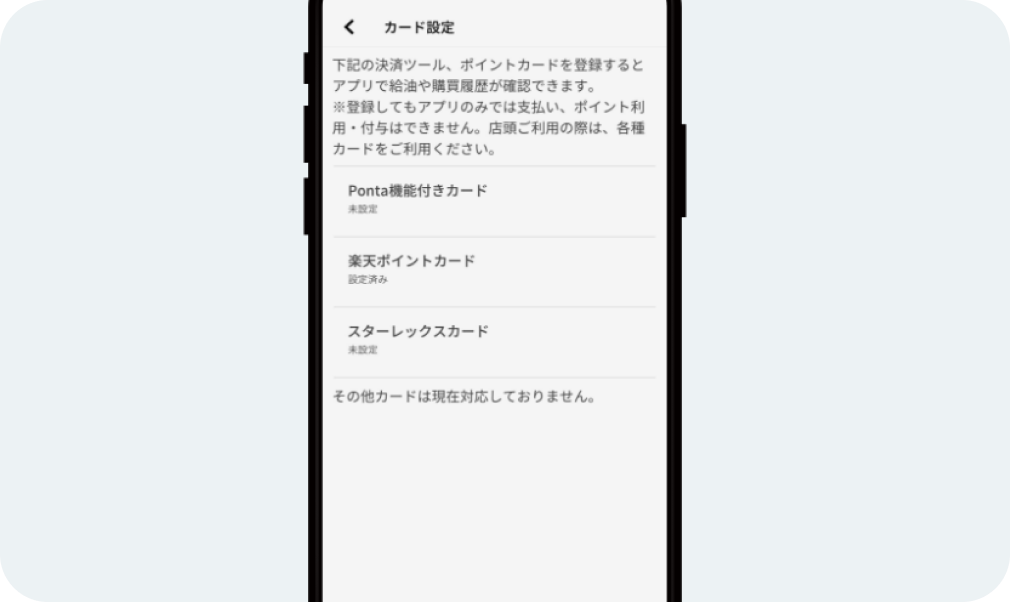
Register your card
If you open [Settings] in My Account and press [Card Settings], you will be able to see the refueling history of the card you have registered and the purchase history of the products you have purchased.
-
Set up your account
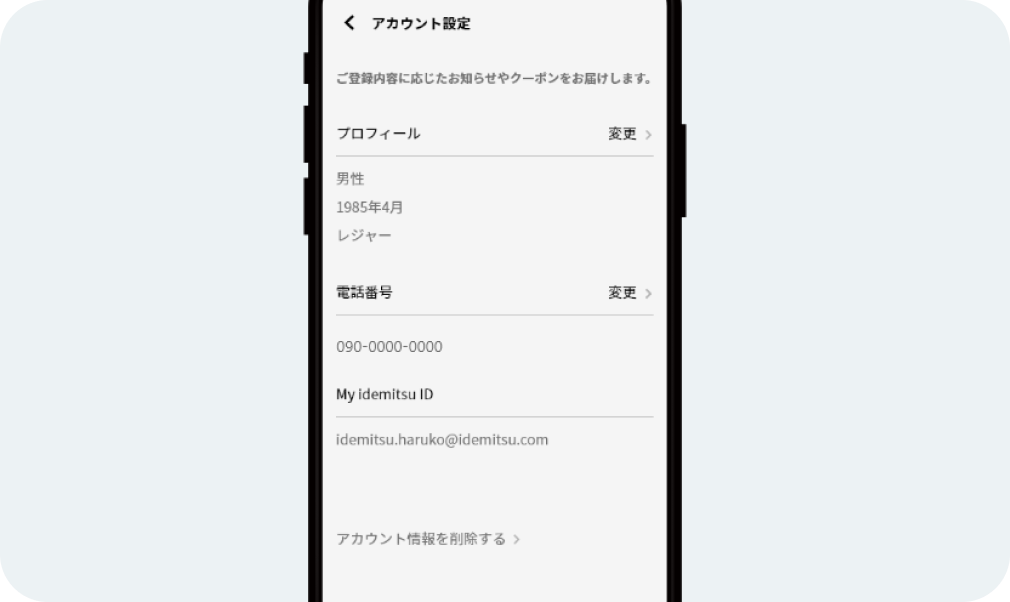
Set up your account
If you open [Settings] in My Account and press [Account Settings], you can register your gender, date of birth, and main purpose of car use as your profile. If you register, you may receive coupons and notifications based on your registration details.
If you have registered My idemitsu ID, the email address of My idemitsu ID will be displayed.
You can also register your phone number from this account setting. -
Setting the screen
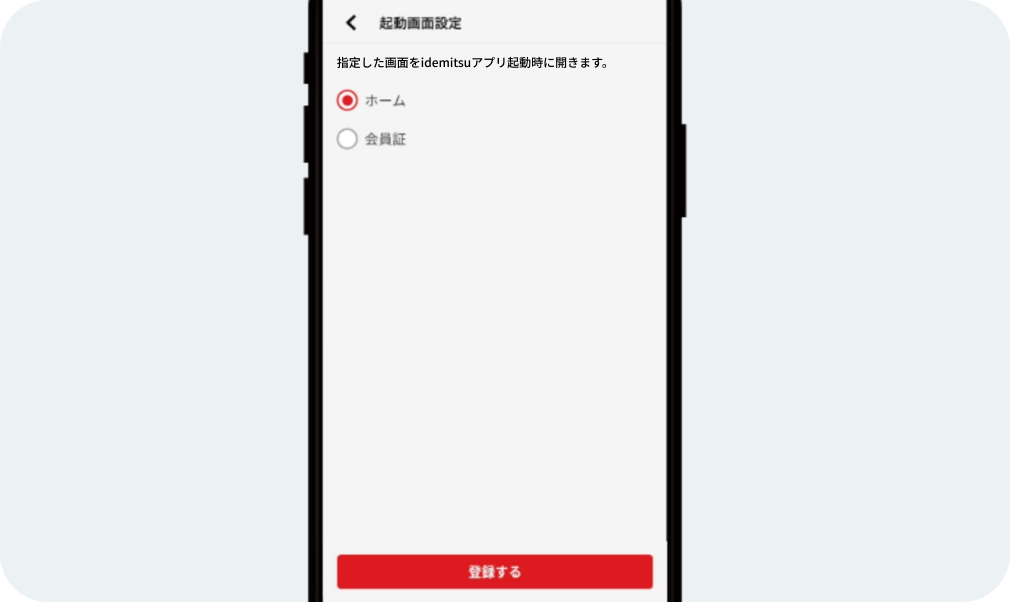
Setting the screen
You can choose which screen to display when you launch the idemitsu app: [Home] or [Membership Card]. [Home] is the default setting.
-
Setting the screen
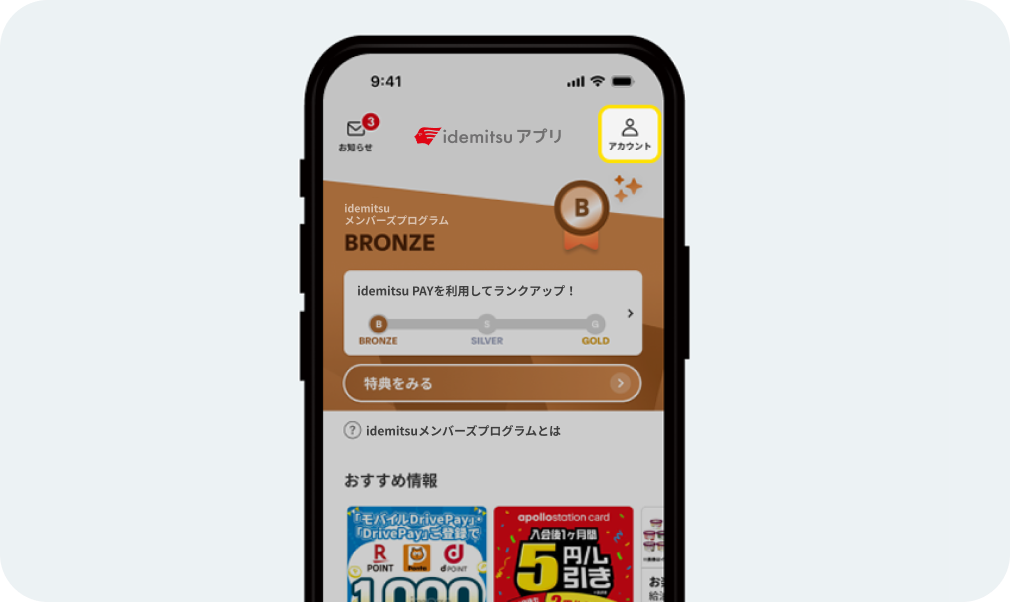
Registration of My idemitsu ID
Tap the "People (Account)" icon in the top right corner of the screen.
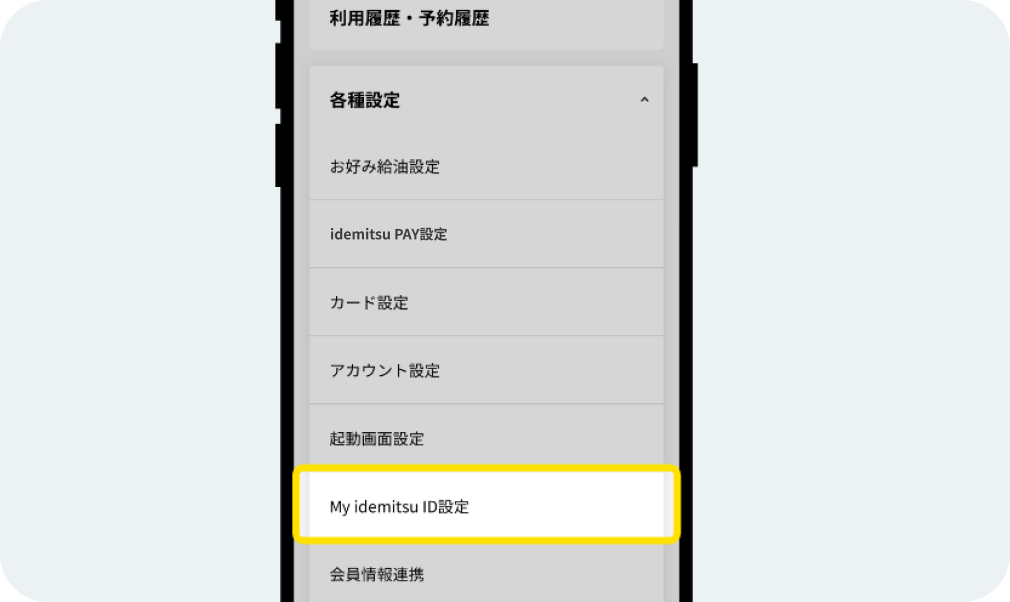
Tap "Set up My idemitsu ID".
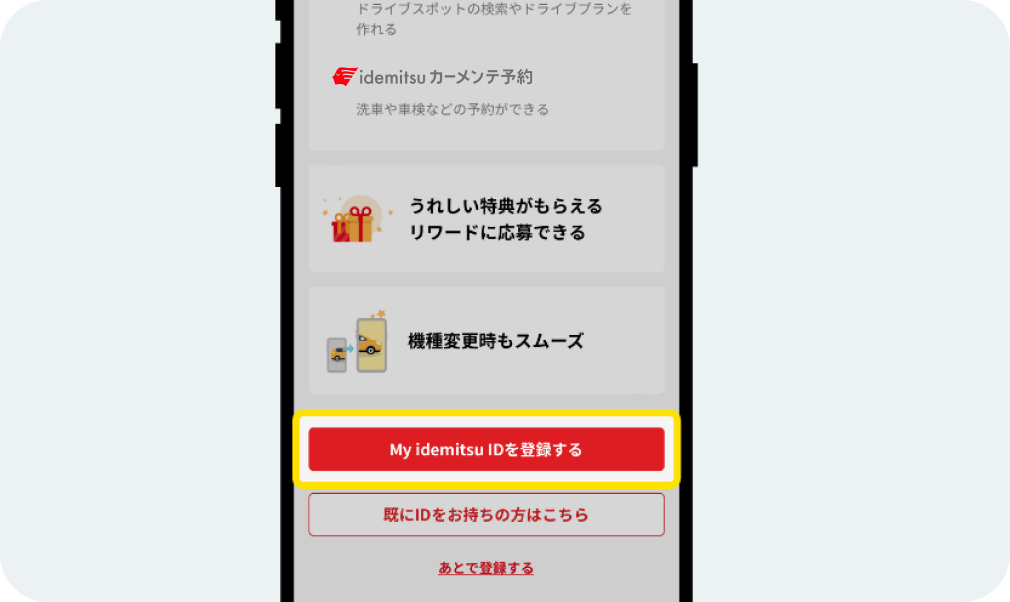
Tap "Register My idemitsu ID settings."
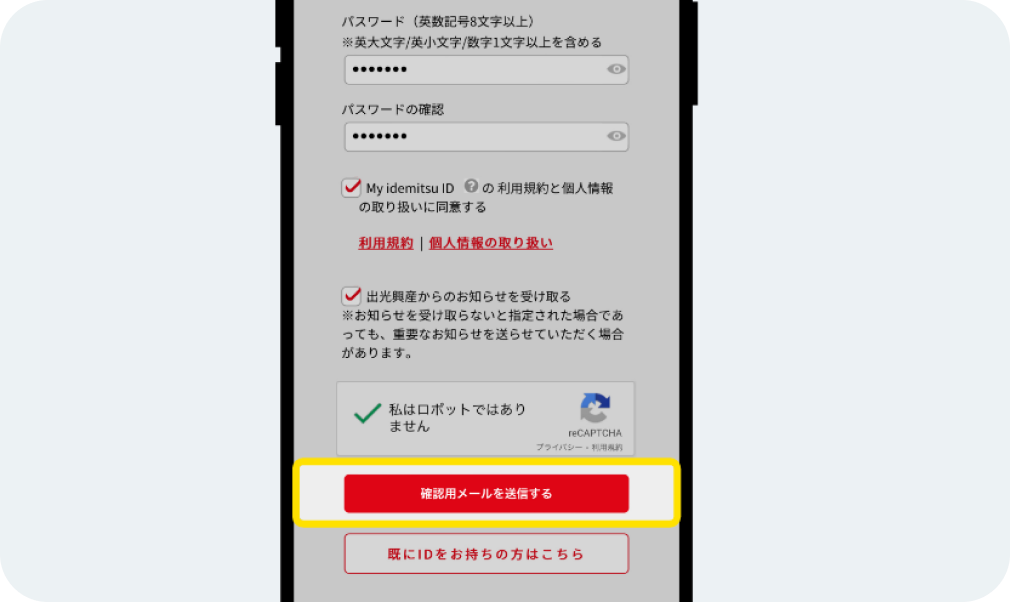
Enter your email address and password, check "I agree to the My idemitsu ID terms of use and handling of personal information," and tap "Send confirmation email."
-
Check My idemitsu ID settings
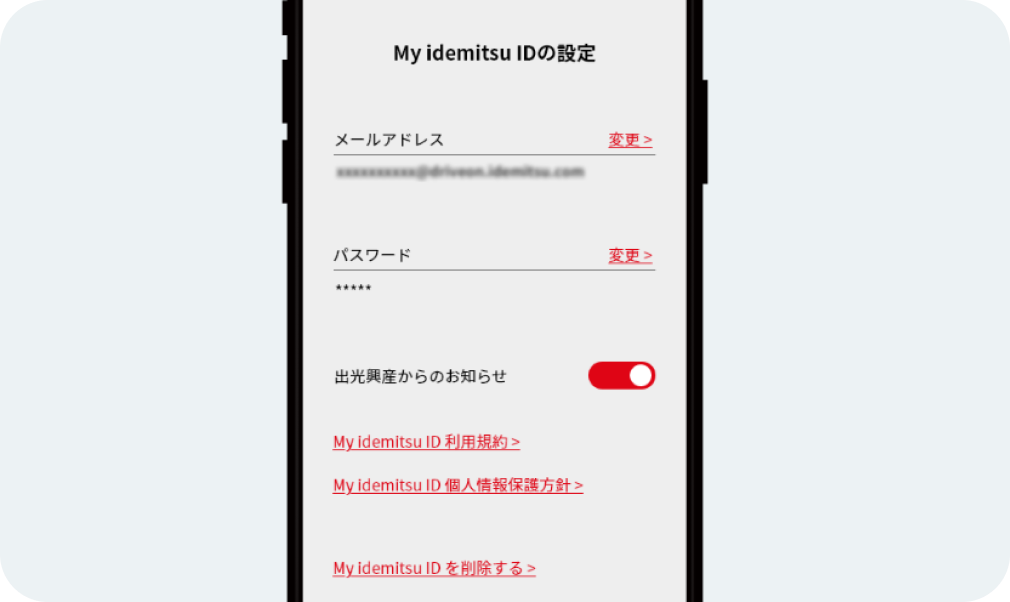
Check My idemitsu ID settings
Open "Various Settings" in My Account and click "My idemitsu ID Settings" to display your My idemitsu ID registration information, where you can change your email address and password. You will need to log in to check or change your registration information. If you have not yet registered a My idemitsu ID, you can register here.
-
Linking member information with the app
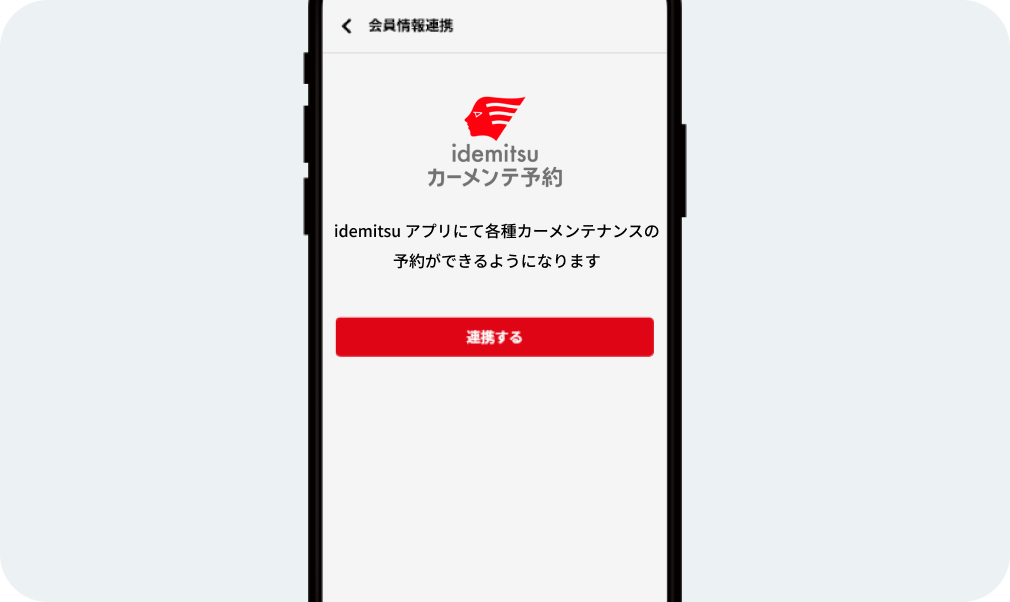
Linking member information with the app
If you have registered your My idemitsu ID, you will be able to make reservations for vehicle inspections and maintenance from the app by linking your member information.
-
Set notifications from the app
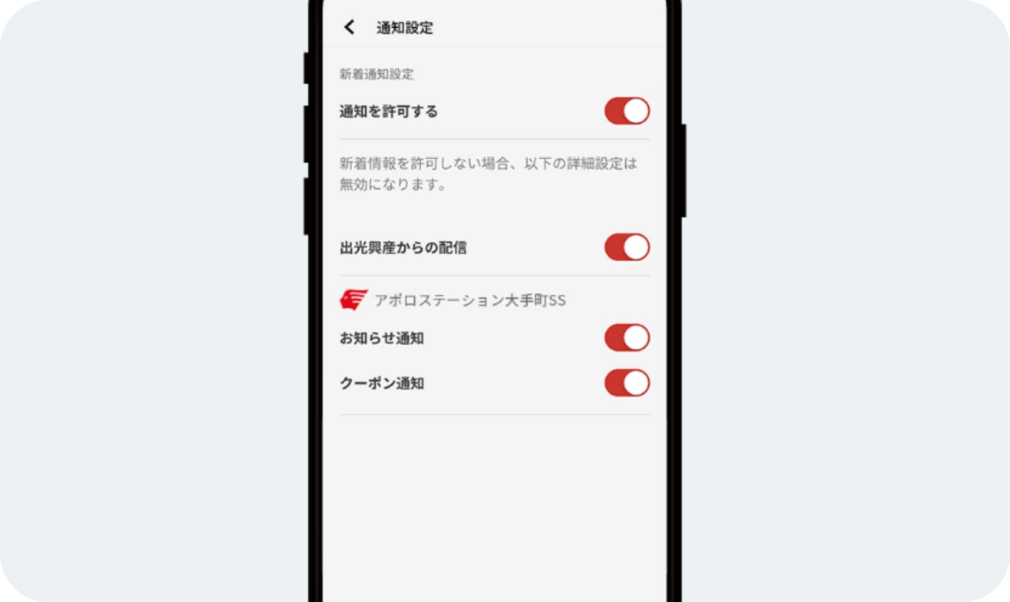
Set notifications from the app
You can configure whether or not you want to receive notifications about announcements and coupon distributions on the idemitsu app.
-
Check app version
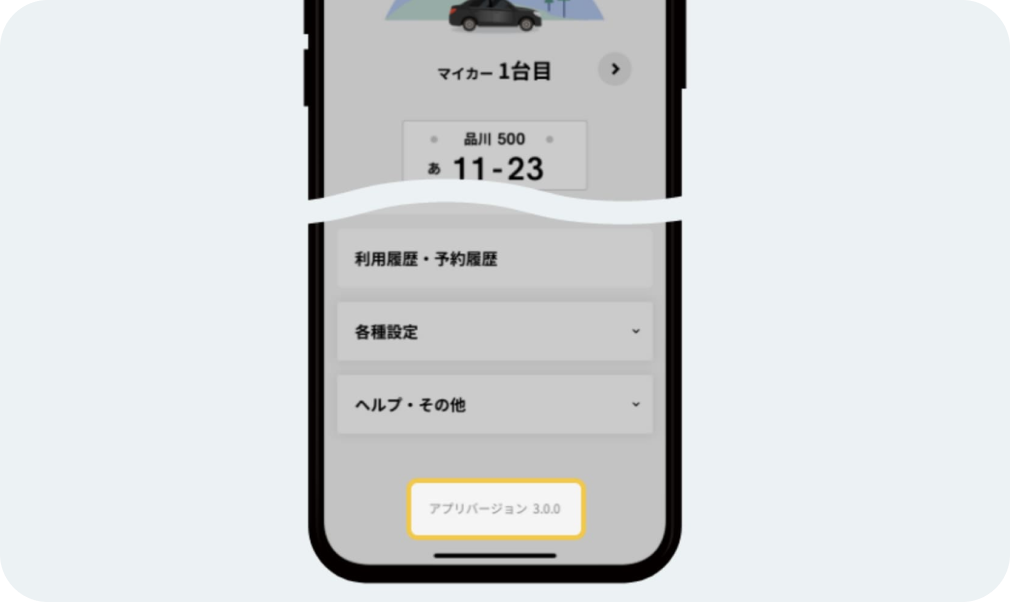
Check app version
You can check this by looking at the app version information displayed at the bottom of My Account.
Regarding various settings and confirmations
Regarding various settings and confirmations
You can manage your car and check your usage and reservation history.

Using Idemitsu's services
Let's aim for Gold rank!

*Apple, the Apple logo, iPad, and iPhone are trademarks of Apple Inc., registered in the U.S. and other countries. The iPhone trademark is used under license from Aiphone Co., Ltd.
*App Store is a service mark of Apple Inc.
*iTunes only permits legal copying. Please do not pirate music.
*"Google Play," "Google Play logo," and "Android" are trademarks or registered trademarks of Google Inc.