Regarding various settings and confirmations


You can set up and check your accounts and apps.
Configure/confirm
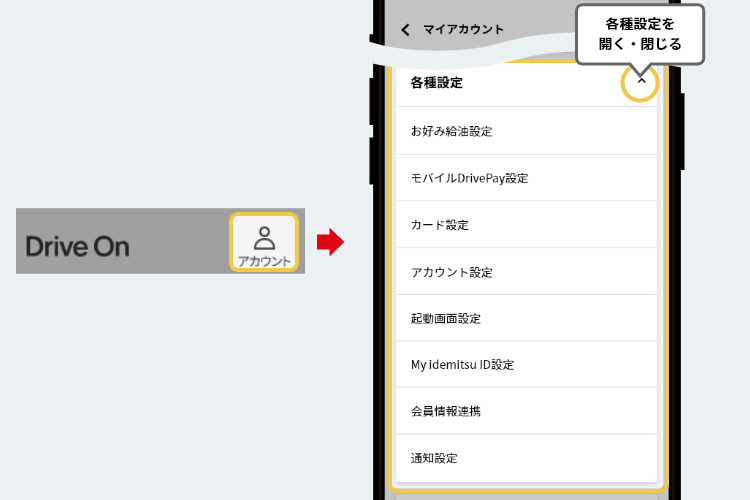
When you press [Settings] in My Account, a menu will appear where you can set and check your account and apps.
Setting the preferred refueling
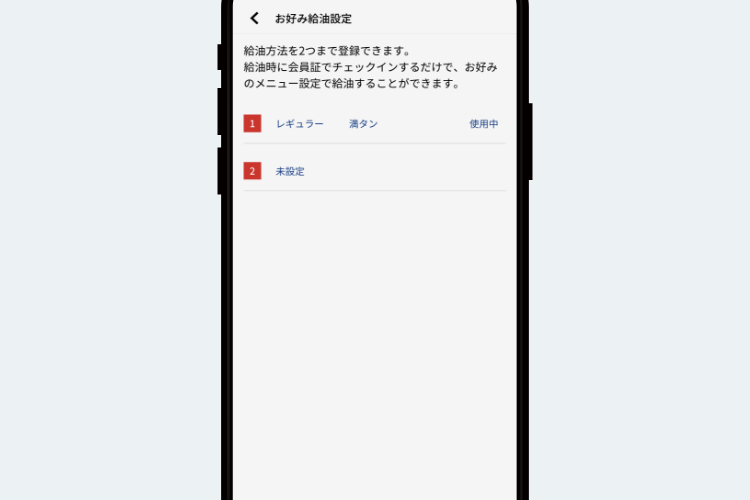
Open [Various Settings] in My Account and press [Preferred Refueling Settings]. By setting the usual refueling information (oil type/quantity/amount), you can skip the refueling specification when refueling. Masu.
Set up mobile DrivePay
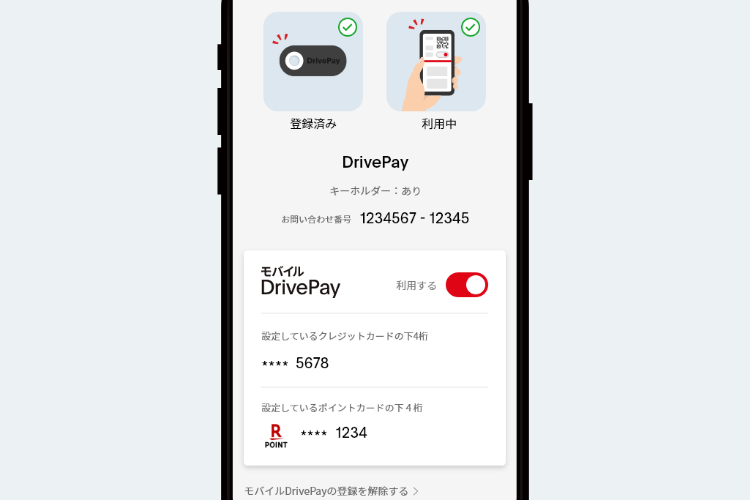
You can check your mobile DrivePay settings.
If you have already registered for Mobile DrivePay, your usage status and some of the credit card number and point card information you have set will be displayed.
If you registered for DrivePay with an earlier version of Drive On, your registration status and contact number will be displayed.
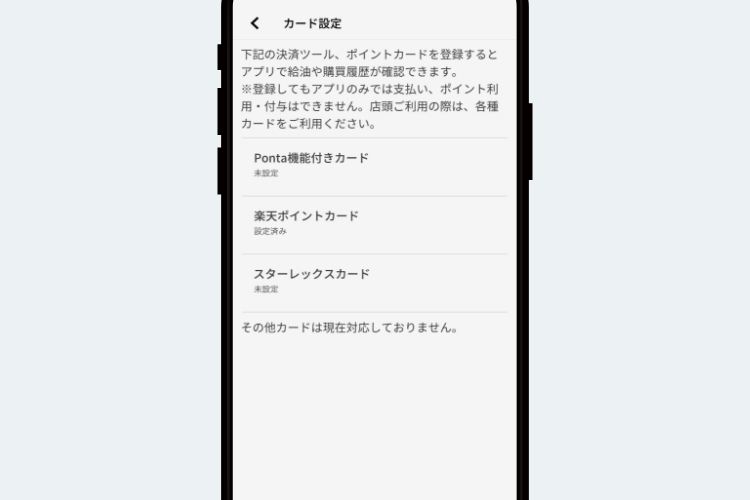
By registering these, you will be able to view your refueling history using Mobile DrivePay or DrivePay, as well as the purchasing history of products you have purchased.
Register your card
If you open [Settings] in My Account and press [Card Settings], you will be able to see the refueling history of the card you have registered and the purchase history of the products you have purchased.
Set up your account
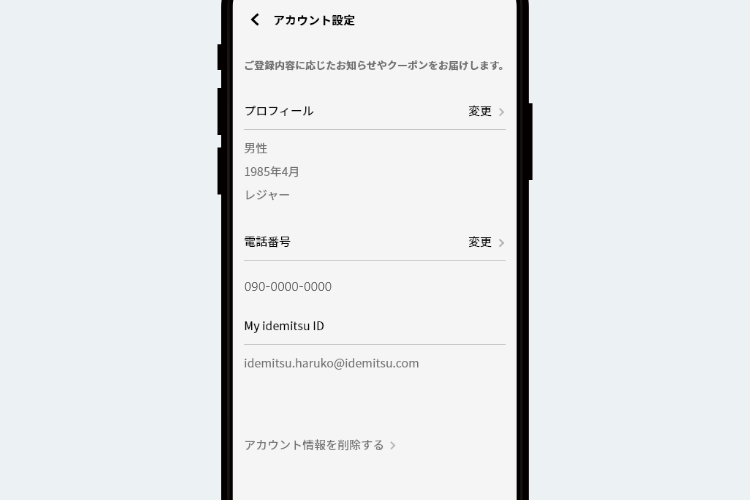
Open "Various Settings" in My Account and click "Account Settings" to register your gender, birth month and year, and main purpose for using your car as part of your profile. If you register, you may receive coupons and notifications based on the details you have registered.
If you have registered a My idemitsu ID, the email address of your My idemitsu ID will be displayed.
You can also register your phone number through this account settings.
*Distribution of coupons and notifications may vary by store.
Setting the screen
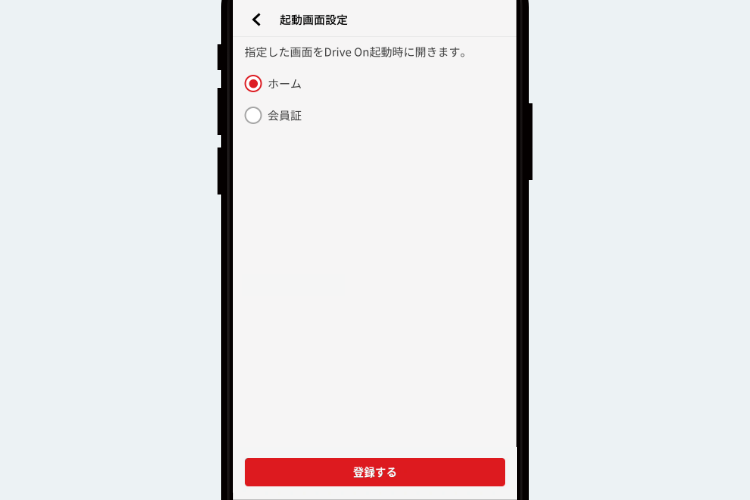
You can select the screen to be displayed when starting the Drive On app from [Home] or [Membership Card]. The default setting is [Home].
Registration of My idemitsu ID
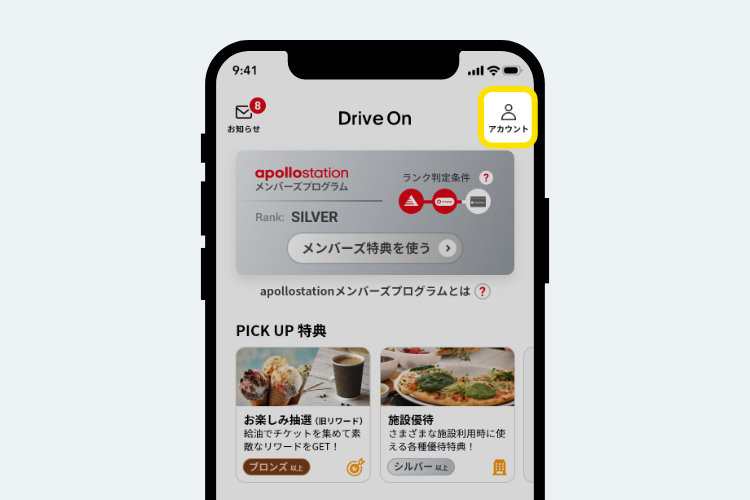
Tap the "People (Account)" icon in the top right corner of the screen.
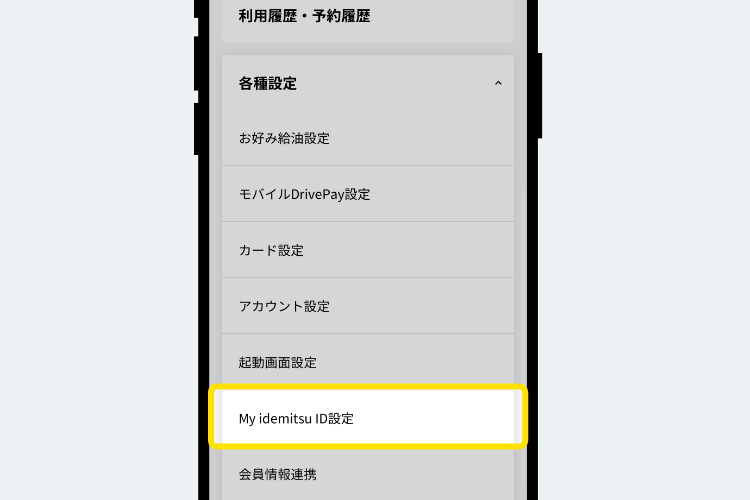
Tap "Set up My idemitsu ID".
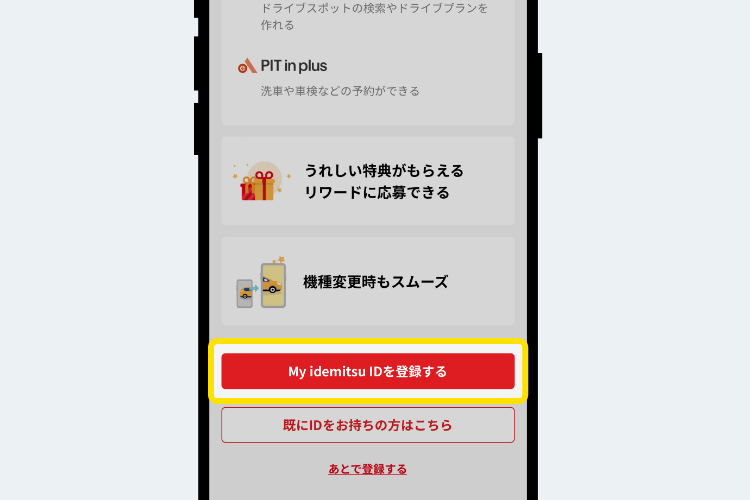
Tap "Register My idemitsu ID settings."
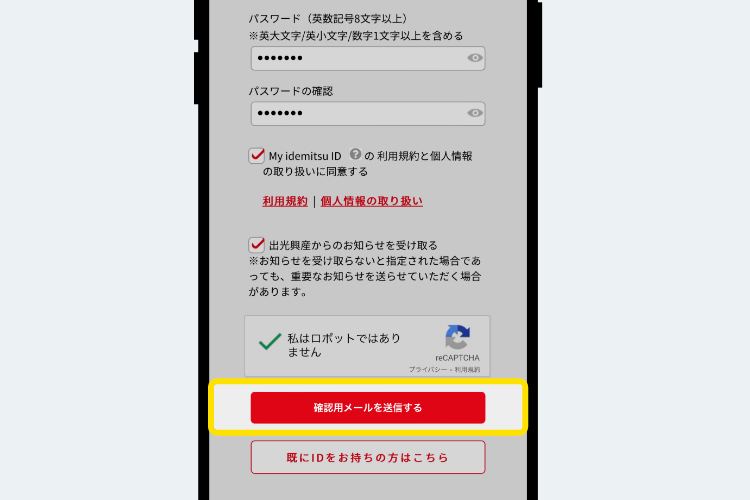
Enter your email address and password, check "I agree to the My idemitsu ID terms of use and handling of personal information," and tap "Send confirmation email."
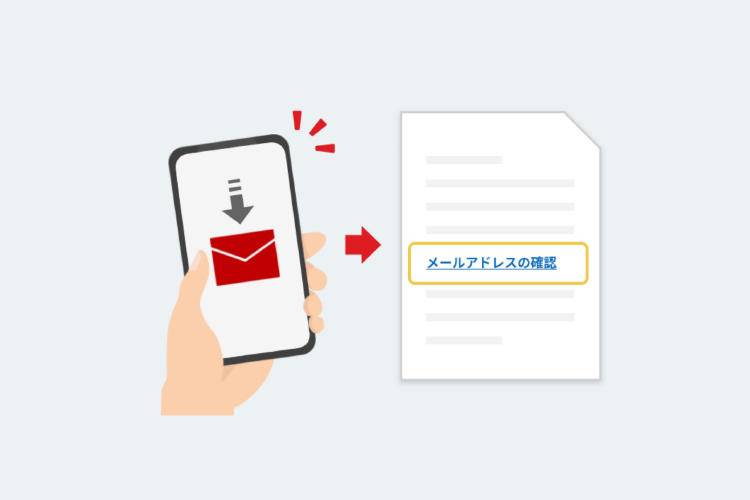
Click "Confirm your email address" in the body of the email you received.
Select it and you're done.
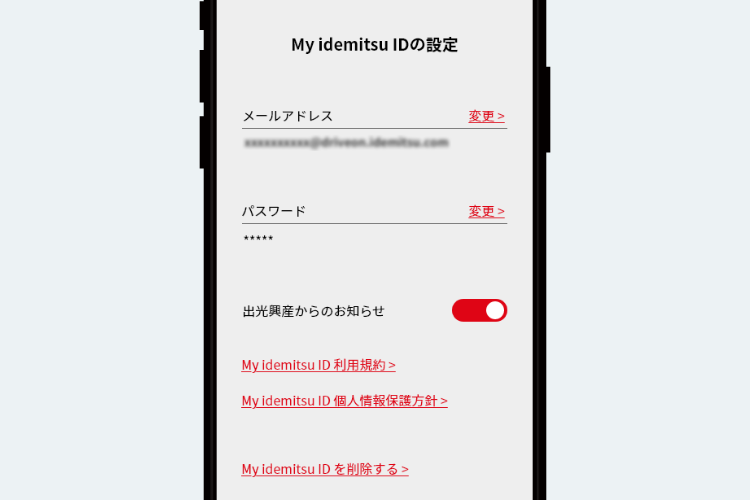
Check My idemitsu ID settings
Open "Various Settings" in My Account and click "My idemitsu ID Settings" to display your My idemitsu ID registration information, where you can change your email address and password. You will need to log in to check or change your registration information. If you have not yet registered a My idemitsu ID, you can register here.
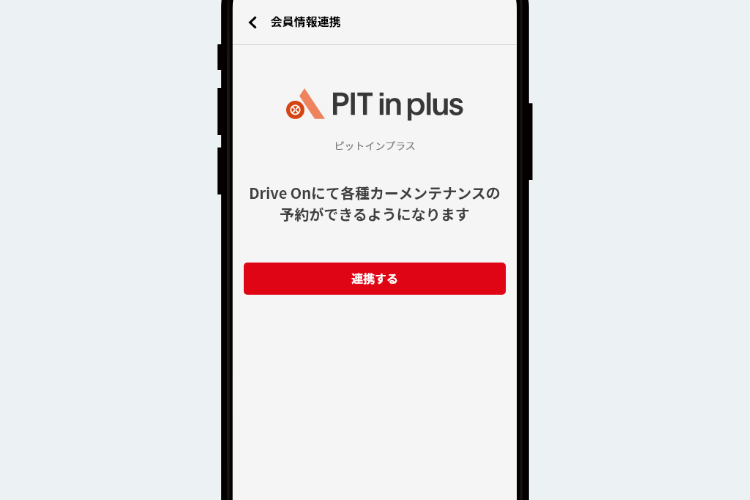
Linking member information with the app
If you have registered your My idemitsu ID, you will be able to make reservations for vehicle inspections and maintenance from the app by linking your member information.
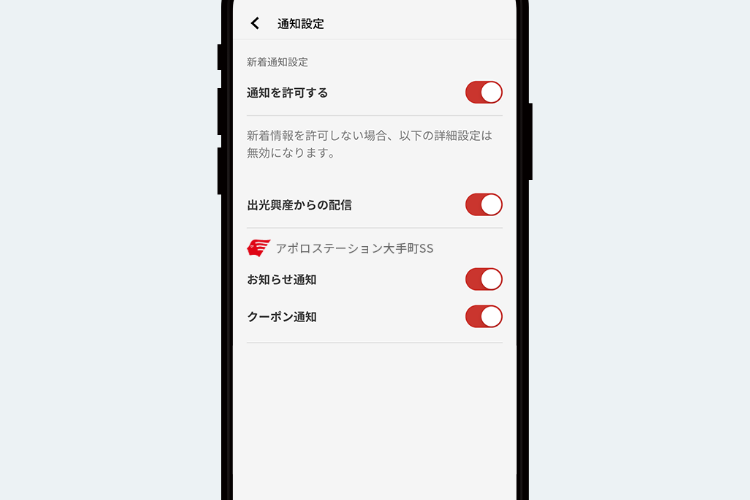
Set notifications from the app
Get notified about notifications and coupons on the Drive On app
You can choose whether to accept it or not.
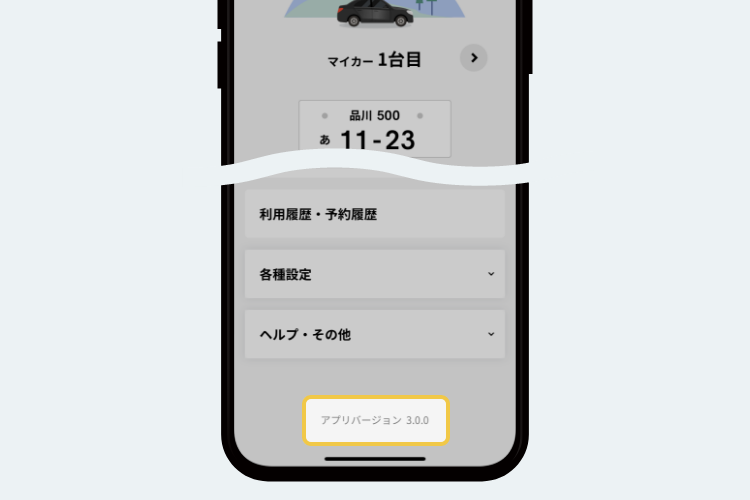
Check app version
The app version information is displayed at the bottom of your account.
You can check and see.



*Apple, the Apple logo, iPad, and iPhone are trademarks of Apple Inc., registered in the U.S. and other countries. The iPhone trademark is used under license from Aiphone Co., Ltd.
*App Store is a service mark of Apple Inc.
*iTunes only permits legal copying. Please do not pirate music.
*"Google Play," "Google Play logo," and "Android" are trademarks or registered trademarks of Google Inc.